It sometimes happens that you encounter sudden playlist loss issues or bugs on certain channels (Fail connect, Buffering, etc.) in the Smart IPTV application on your TV or Box. In some cases, you just need to re-enter the link, and everything will work again.
To learn how to enter your m3u link in the Smart IPTV application using your MAC address from any browser, it’s easy.
Follow these steps:
Step 1: Download the m3u file using your link
You can find your m3u link by logging into your account => Subscription menu (top right) => details of your subscription or in the email you received after activating your subscription.
- Open your internet browser (Firefox, Chrome, Internet Explorer, etc.)
- Paste the m3u link into the address bar and press « enter » to download the file to your computer:

Step 2: Clear the old playlist from your TV:
1 – Go to the site: siptv.eu/mylist
2- At the bottom, enter your MAC address in « Delete playlist » => « MAC » field:
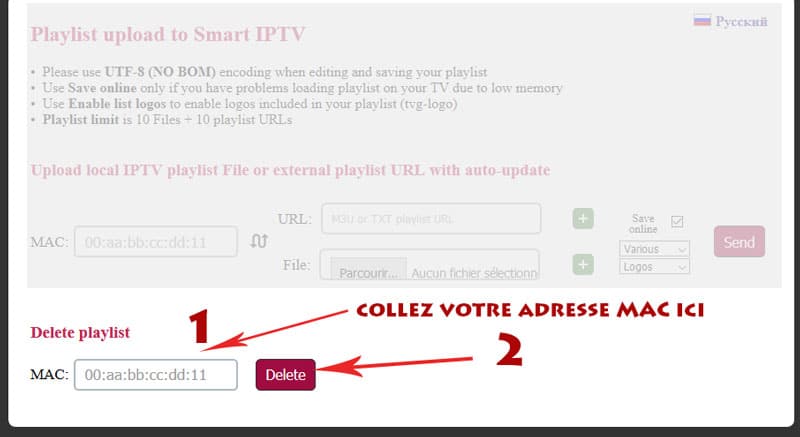
Note: This step resets the Smart IPTV playlist, meaning it deletes the file and the stored m3u URL in the application and resets it to zero.
Step 3: Inject the downloaded file + m3u URL into the Smart IPTV application:
-Go to this page: siptv.eu/mylist
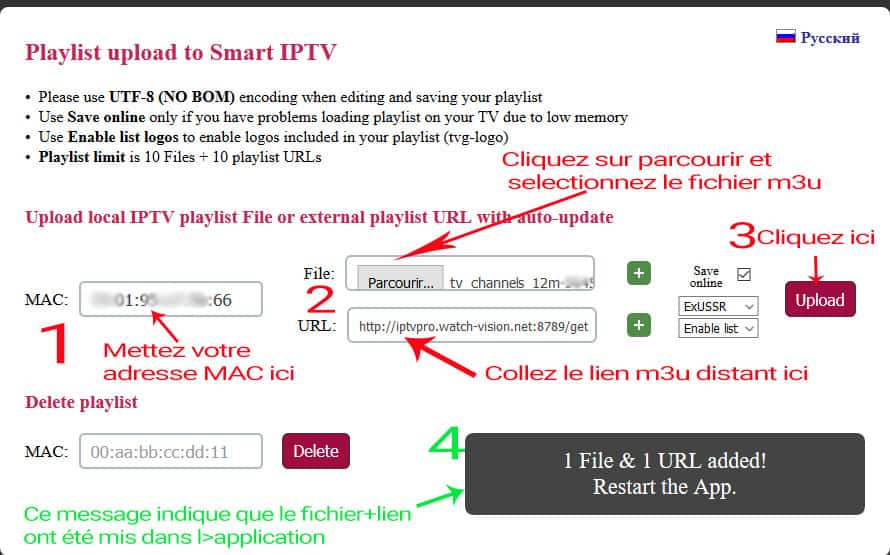
1- Enter your MAC address in the « MAC » field.
2- In « File », click on « browse » and select the file you downloaded in Step 1 and paste your m3u link in the « URL » field (do exactly as shown in the photo above).
Important: You must paste the m3u URL in the URL field to have automatic file updates. If you only use the file, it is normal that you will experience problems with certain streams after a while, so it is mandatory to enter the URL only or URL + file.
3- Click on the « Upload » button.
4- Wait a few seconds while the file + m3u URL is loading; the following message will appear: « 1 File & 1 URL added!Restart the App. »
5- Go back to your Smart TV and restart the Smart IPTV application (press Reload(0) or the Restart button), if the channel list does not load automatically, restart the TV and relaunch the application. If you receive a message « server connection Timeout », do not press OK and wait for the full loading; this can sometimes take up to 60 seconds depending on your internet connection speed.
And that’s it 🙂
Note: If you have an LG brand smart TV, change the « STREAM PLAYER TYPE » setting in the application settings and set it to the NC AUTO option instead of WebOS (default).