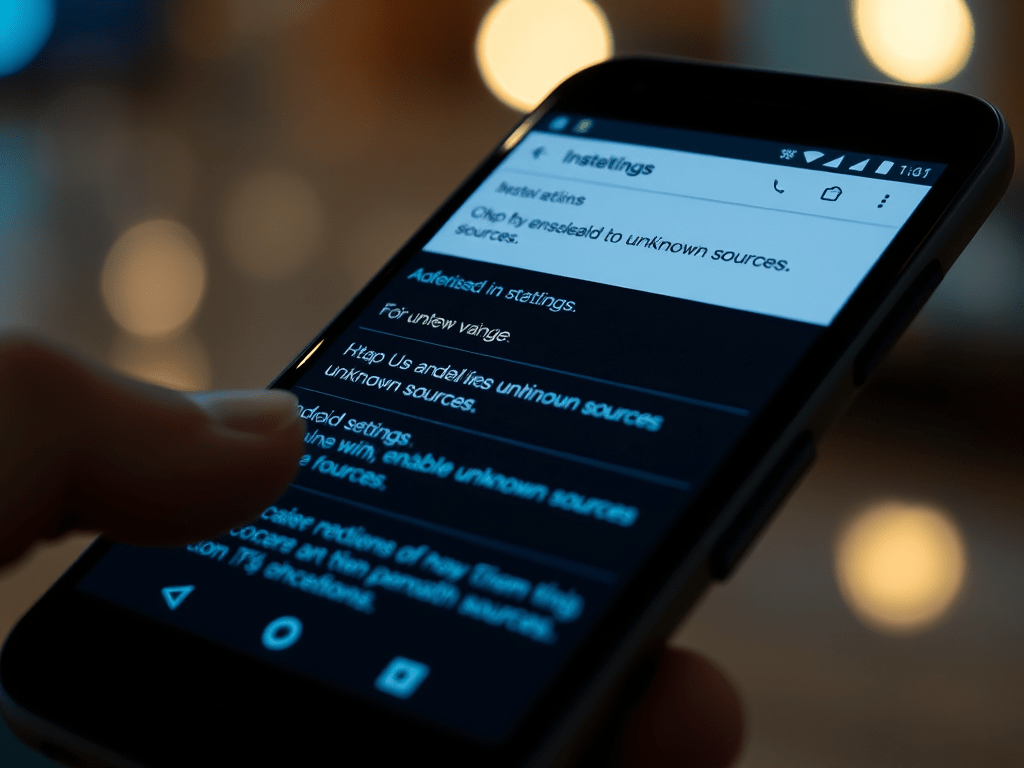

Installing an APK (Android Package Kit) on an Android device may be necessary when the app is not available on the Google Play Store or if you have downloaded an app directly from the developer’s site. Here’s a simple guide to install an APK file and enable unknown sources.
Step 1: Download the APK file
- Find the APK file: Go to a reliable site to download the APK (e.g., the official developer site or recognized platforms like APKMirror).
- Download the APK: Once you locate the file, click on the download link to get the file on your device.
Step 2: Enable unknown sources
Before installing the app, you need to enable the unknown sources option to allow installations from sources other than the Play Store.
- Access settings: Open the Settings app on your Android phone.
- Select « Security » or « Privacy »: Depending on your Android version, this option may be under the Security or Privacy tab.
- Enable « Install unknown apps »: Look for the Unknown sources or Install unknown apps option.
- Choose the browser or file manager: Select the app you use to download (e.g., Chrome or a file manager) and enable the option.
Step 3: Install the APK app
- Access the APK file: Go to your file manager or the download notification to locate the APK file you just downloaded.
- Start the installation: Tap on the APK file. A pop-up window will ask you to confirm the installation, click on Install.
- Installation complete: After installation, you can open the app immediately by clicking on Open or find it later in your app list.